

Agent mode
Every DataMaker workspace has a built-in chat agent. It runs the same MCP toolset
that Claude Code, Cursor, and Copilot get when you wire up the
datamaker-mcp server, but it’s hosted, no install needed, and it’s the
quickest way to drive the platform without touching the GUI.
Opening a chat
From the project sidebar, click Chat, then start a new conversation. There’s a single mode (the agent), so there’s no “chat vs agent” toggle to choose: every message can plan, call tools in sequence, write and run Python, and seed your targets. Just type and send.
The first time you message in a project, DataMaker creates a project-scoped scenario API
key (sc- prefix) that scopes the agent’s actions to that project.
Anatomy of an agent run
When you send a prompt, here’s what happens:
- The model receives your message plus the catalogue of MCP tools.
- It works one step at a time, with a short line of narration (“Fetching 3 cat facts…”), then the tool call.
- Each tool response is fed back to the model. It iterates: more tool calls, or the final answer.
- If a tool fails, the model decides whether to retry, adjust, or surface the error.
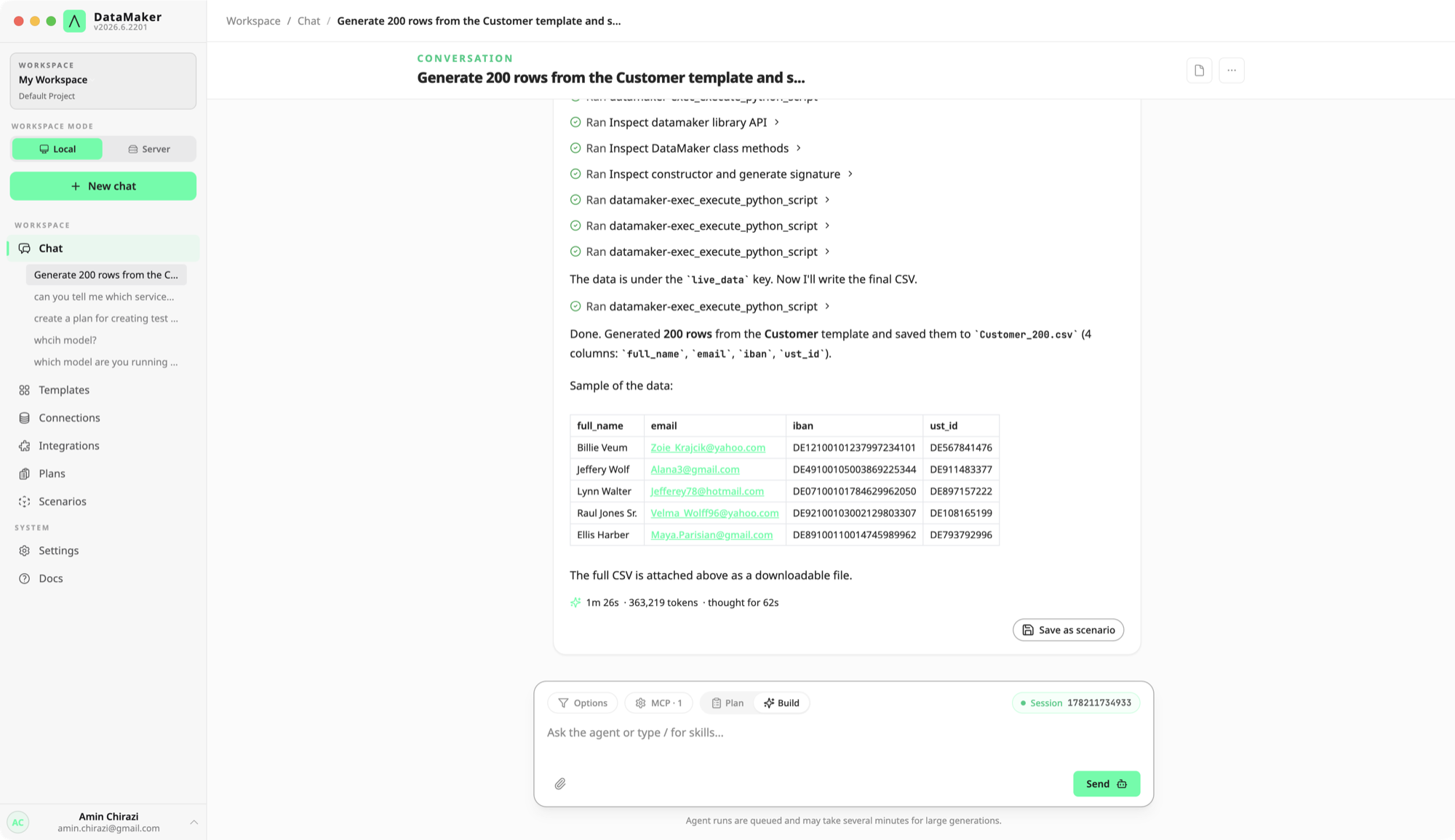
You watch it happen as a live transcript that streams into the message:
- Narration between steps: what it’s about to do and why.
- Tool rows: collapsible lines like
Ran Create templateorRan Generate data; expand one to see the inputs. - The answer: a past-tense summary with the IDs of anything it created.
- A footer with the run time and token usage.
Multi-agent delegations, file edits, and retries appear inline as their own rows, so a run is never a black box.
Prompt patterns that work
Bad prompts get vague answers. Good prompts get tool calls. A few patterns:
- Be specific about scale: “Generate 100 SAP business partners for Germany” beats “give me some test data”.
- Name the entity / target: “POST them to A_BusinessPartner in the S/4 sandbox” beats “push to SAP”.
- Mention output: “Save the result as
reg_bp_de_2026q2” or “show me the first three rows” gives the agent a clear endpoint. - Reference real names: if you know your template is called “Customer”, say so, and the agent will skip the discovery step.
A single good prompt:
Pull 25 existing SAP Business Partners from the S/4 sandbox where Country = DE and BPRole = FLCU01, build a template from their shape, generate 200 more, and POST them back to a fake-customer entity.
The agent strings together the tools it needs (discovering the SAP service, reading records, creating a template, generating, and writing back) and streams each step as it goes. The exact tools depend on what’s connected; see the tool catalogue.
Inspecting a run
Every run stays in the conversation. Scroll back through a chat and you see the full transcript, each narration line and each tool row. Expand any tool row to see the exact inputs that step ran with, so you can verify what touched your systems before trusting the result.
To repeat the whole thing without retyping the prompt, save it as a scenario (below).
Saving a chat as a scenario
If a chat run does something useful you want to repeat, and you’d rather not retype the prompt, click Save as scenario at the bottom of the chat. The agent generates a Python scenario that does the same thing, writes it to your Scenarios list, and you can trigger it from the API or CI.
This is the canonical path for “I figured out how to do X interactively, now make X runnable from a pipeline”.
Permissions & sensitive data
By default the agent will not export sensitive fields. If a tool tries to copy a
sensitive value into chat output or out to a non-DataMaker target, the agent surfaces
the block and asks. Override per chat with confirm export of sensitive fields: yes,
or workspace-wide under Settings → Agent permissions.
See Templates → Sensitive fields for the model.
Limits
Agent usage is metered per plan. A “run” is one user message plus all the tool calls the agent makes in response. See your workspace plan for the current run and generation quotas.